Chapter Assumptions
Publications
In order for this website to properly display the website will make the following assumptions about the chapter files.
- There will be 1 html file for each chapter, and 1 css file for all chapters that get exported from the importer. You can add extra CSS files if needed after the importer.
- The chapter filenames are in alphabetical order as they will be displayed ot the.
- Anything with a word style of “Print version” will be removed.
- Table of Contents
- The TOC file is identified by an element with it’s only class being “chapter-title” that contains the word “Contents.”
- All Chapters should have “toc-chapter-number” followed by a “toc-chapter-title”
- Anything with a word style of “toc-page-number” will be removed. (ex. …14)
- The links work by matching up the text of the TOC section with an a-head, b-head, c-head, and b-head-after-a-head in the appropriate chapter where the element text matches. For d-head-run-in and heads-d-head-run-in
it matches it up from the beginning until the first period.
- The links work by matching up the text of the TOC section with an a-head, b-head, c-head, and b-head-after-a-head in the appropriate chapter where the element text matches. For d-head-run-in and heads-d-head-run-in
- All appendix links should also contain the class “toc_appendix_link.” We are working on an way to automate this, but for now this must be manually added to the html before uploading to the site.

- Chapters
- The other chapters have a style called “chapter-title” and the contents are the name/title of the chapter. There should not be any other text in this element such as a hotlink or anchor.
- There is a style called “chapter-number” that contains the word “Chapter” followed by a number. There can be text after the number such as a hotlink or anchor, but it must begin with the word “Chapter” followed by a number.
- Appendixes or other parts of a chapter are contained in the same file as the chapter and have a style called “chapter-part-title” (ex. Chapter 3 Appendix: Case Summaries) which holds the title for that
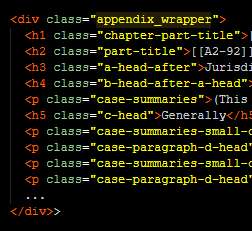
section. The second word will be the number of the chapter. There is a word style “chapter-part-title” (ex. Search and Seizure Issues) that contains the name for this section. - The entire appendix needs to be wrapper in a class called “appendix_wrapper.” We are working on an way to automate this, but for now this must be manually added to the html before uploading to the site.
- Section Titles in the Menu
- The menu order is determined by the alphabetical order of the filenames. So to create a menu title appear between chapters 3 and 4, create an HTML document that is alphabetically between chapters 3 and 4.
- Example
- Filename for Chapter 3 is ILGF_ch03.html
- Filename for menu title is ILGF_ch03b.html
- Filename for Chapter 3 is ILGF_ch04.html
- For the html document, there only needs to be one line with an element that has a class of “menu_title_only” with text of the element as you want it displayed. You can use the characters if you would like to add more than 1 space.

- It will show up in the draft menu automatically if you have done it correct. To have it display in the published menu that the user sees, click the green thumbs up button next to that file on the “All Chapters” page.
- Example
- The menu order is determined by the alphabetical order of the filenames. So to create a menu title appear between chapters 3 and 4, create an HTML document that is alphabetically between chapters 3 and 4.
- Insert HTML from a file.
- Sometimes it’s easier to have HTML for a certain section in another file. An exported table is a good example.
- Place that HTML in a file and call it filename.txt, make sure to add an ID or Class to wrapping code.
- Then upload a css that is prefaced with the ID you made in the HTML file. The name of the CSS file is irrelevant.
- Add [[HTML,filename.txt]] to the word doc with a style called “HTML Import”.
- When preparing the chapter this will be converted to the HTML from that file.
- Then upload the .txt and .css file in the media section choosing the right book the same way you update chapter files.
- Insert Image or Figures.
- Add [[IMAGE,class_name,filename.png]] to the word doc with a stlye called “Image Import.”
- Then upload the image file in the media section choosing the right book the same way you update chaper files.
- Footnotes/Endnotes
- All footnotes should have the class “footnote-callout” in order to be process properly. The other chapters have a style called “chapter-title” and the contents are the name/title of the chapter.
- Web Links
- Anything that matches the pattern [[URL,something.com]] will be turned into a hyperlink.
Example 1:Here is a link, [[URL,https://www.google.com,Click to go to google.]]Here is a link, Click to go to google.
- Anything that matches the pattern [[URL,something.com]] will be turned into a hyperlink.
- Anchors and Links
- Anything that matches the pattern [[A3-1]] will be anchors (the destination) for some link found elsewhere in the book.
- Links are identified using the pattern [[HL3-25]].
Example 1:Some stuff here then [[HL3-25, click here]] to go to the proper place.Some stuff here then click here to go to the proper place.Example 2:See this [[HL3-26,link]], or [[HL5-27,”this link”]].See this link, or “this link”.
- File Links are identified using the pattern [[FILE,filename.pdf,Here is the file]].
Example 1:[[FILE,dean_letter.pdf,Click here for the deans letter.]]Click here for the deans letter.(FILE must be capitalized just like HL and A above)
ASI Specific Assumptions
- Case Summaries Collapsing
- The case summaries court names will have a word style called “case-summaries-small-cap-head.” Everything between this style and the next instance of this style is a case summary matching this court and will be
hidden and indented.
- The case summaries court names will have a word style called “case-summaries-small-cap-head.” Everything between this style and the next instance of this style is a case summary matching this court and will be