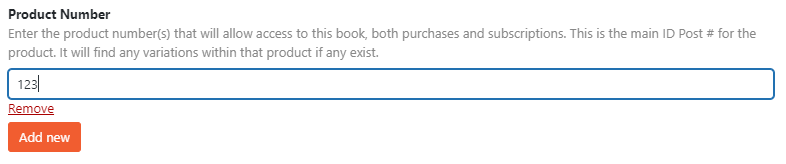
Connecting a product to a book.
Marketing
ITD
- Once a product is created it has an ID #. You can get this from the product edit page or the Summary Tables tab on this page.
- Go to the edit page for the book and scroll near the bottom. There will be a field called Product Number.
Enter the product number and click update on the product (blue button at the top). - Repeat as needed. To add another product click the orange Add new button and enter another Product Number.
This is how you can bundle books together. For example, if you wanted to sell a subscription to all books by author X.- Create a new book for each of author X’s publications, book “A” and book “B”
- Create a product to sell book A, which will be product ID 123.
- Create a product to sell book B, which will be product ID 124.
- Create a product to sell both book A and book B, which will be product ID 125.
- On the configuration screen for book A where the product number field is you would enter 123, then add another entry for 125.
- On the configuration screen for book B where the product number field is you would enter 124, then add another entry for 125.