Adding Chapters and Files to the Book
Publications
ITD
The importer tool will output 2 kinds of files. There should be 1 html file per chapter and 1 css file for the whole book.
This is also where you would upload and custom css files.
This is also where you would upload and custom css files.
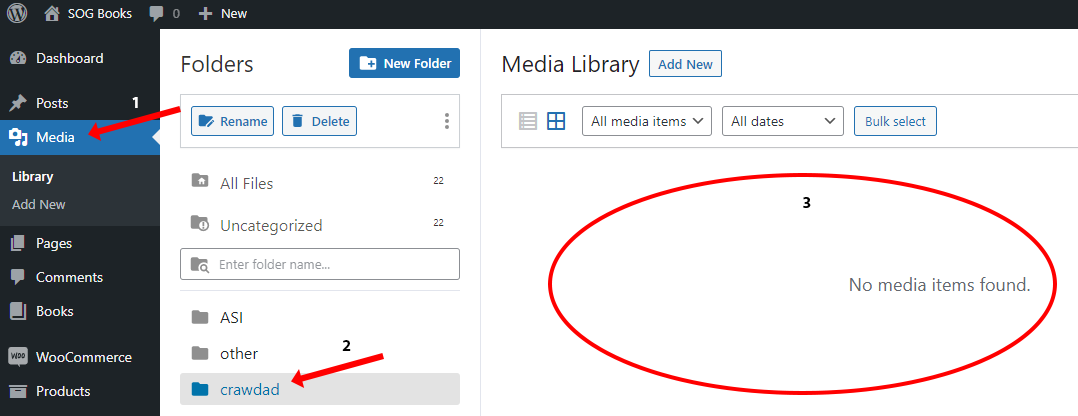
- Click on Media on the left menu.
- Choose the folder that matches the slug of the book.
- Drag all of the html and css files to the upload area. Or use the “Add New” button at the top.
- The custom CSS files should follow this structure.
- {book_slug}.css
- This file is what comes out of the importer and should only be modified by the developer working on the project.
- books_custom_pubs.css
- This will hold all custom CSS, prefaced with .pubs, and is meant for any books following the new pubs standard.
- books_custom_{books_slug}.css
- This will hold all custom CSS meant specifically for this book and should be prefaced with the id #{books_slug}.
- {book_slug}.css
Once you complete the below steps the files will disappear from this screen.
Once the chapters and supporting files have been uploaded you need to let the book know to use the new files.
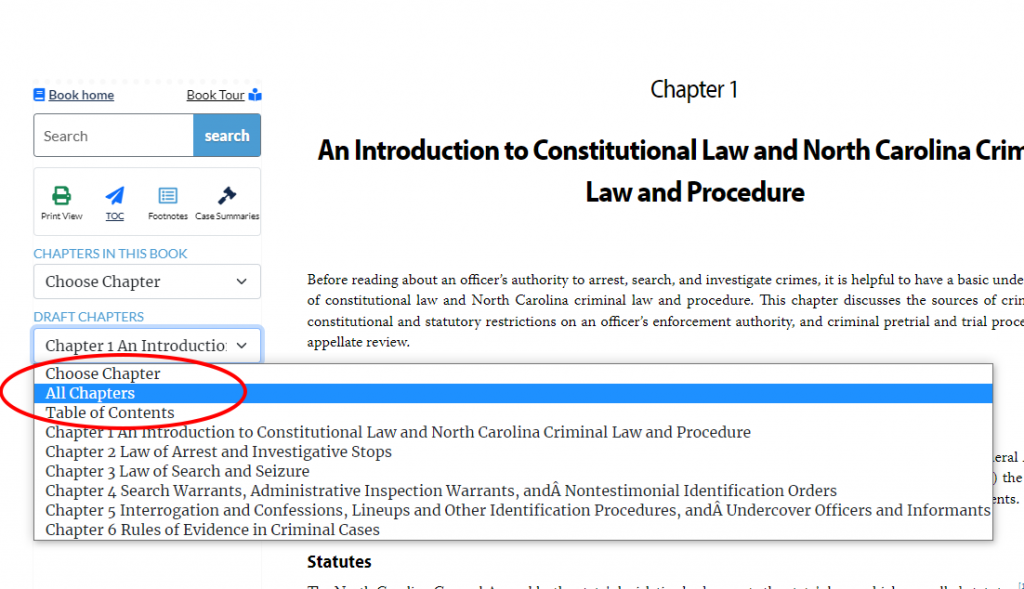
- From any chapter of the book choose All Chapters from the DRAFT CHAPTERS drop down.
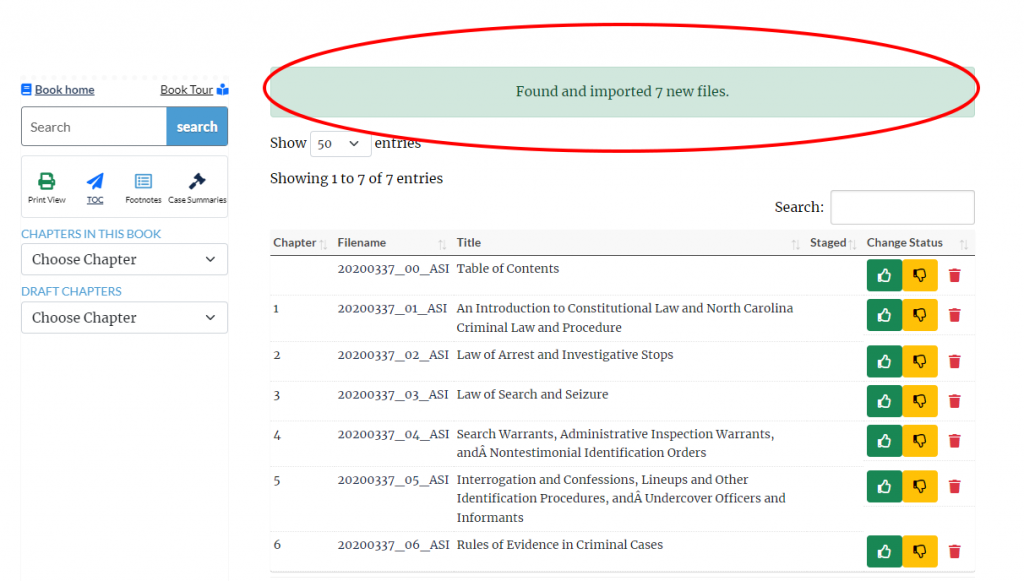
- The all chapters page will load and give you a message about the new files.
- If there is an error message, contact IT.